

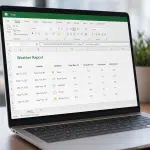

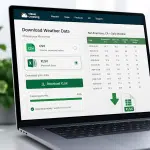
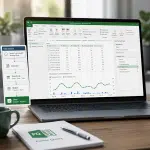

How can I add weather data to Microsoft Excel?
Weather Data for Microsoft Excel
Weather data for Microsoft Excel brings historical weather data and weather forecasts directly into your existing workflows, making it easier than ever to leverage high-quality weather information for immediate business decisions.
With the Excel Weather Extension, you can immediately import critical metrics like minimum temperature or wind direction into existing Excel sheets without having to change other data points. The free Weather Workbook eliminates the need for coding by leveraging Excel's Power Query capabilities, making it invaluable for those who want seamless weather analysis.
Visual Crossing's tools enable rich data analysis without changing your processes, improving user adoption. You can enjoy enhanced operational efficiency and better reporting while protecting all your stakeholders from severe weather events.

Go beyond manual weather workflows in Excel
Manual weather workflows are often too difficult, especially for larger organizations where multiple people may be working on the same Excel spreadsheet. One user may paste in high-temperature historical data where other users intended to place geographic data, resulting in confusion and wasted effort.
Manual data requires repeated downloads with the same query, and even a single error in the query may result in an inconsistent dataset. This may become even more challenging for those working with daily data from various locations, as weather station data may be accidentally mismatched with other locations.
Visual Crossing offers a more efficient workflow that prevents these common errors when working on large data analysis or business planning with multi-person teams. Choose a cell, column, or data tab, input a query, and you’ll receive a stream of new data to display or analyze.

Global Coverage
Visual Crossing offers weather data for anywhere in the world, including historical, current conditions, and forecast data.

Diverse Weather Elements
Visual Crossing offers a wide range of weather metrics, including temperature, precipitation, wind, humidity, solar radiation, and more.

Easy Integration
Visual Crossing provides APIs and integration with popular data tools, making it simple to incorporate weather data into existing systems, applications, and workflows.

Data Accuracy & Reliability
Visual Crossing uses multiple data sources (including ground station, satellite & RADAR) and quality control processes to ensure data accuracy and reliability.

Flexible Format Options
Visual Crossing offers various data delivery methods (including API, bulk downloads & scheduling) and formats (including XLSX, JSON, & CSV), giving users flexibility.
Key weather data features for Microsoft Excel

Historical and forecast data
Easily create with historical reports from ground-base stations & satellites and forecasts from global & local computer models.

CSV and JSON Results
Obtain rich JSON structures or easy-to-use CSV from any API call, ready to be incorporated into your Excel Workbooks.

Location address geocoding
Look up real-time weather data or historical weather intelligence for any location using an address, ZIP Code, latitude/longitude & more.

Weather API or direct download
Query data using our RESTful API or download data via our web-based Query Builder for flexible integration into Excel datasources.
How to Add Weather into Your Excel Spreadsheets and Workflows
You can incorporate weather data into your Excel processes in a range of ways, depending on your specific workflow and technical needs. Whether you want to drill down into the historical record for a specific geographic area via download, or you’d like a summary of today’s weather from high-quality sources like the National Weather Service, our Excel tools can help.
Weather Add-in
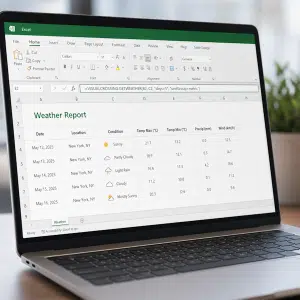
The Weather Add-in is the fastest, most direct option for those who want to seamlessly integrate historical and forecast weather data into Excel. It does not require any manual downloads or advanced setup, making it perfect for those who want a simple formula to retrieve data. These formulas are function calls just like Excel’s built-in formulas, meaning you can get to work without having to learn anything new.
The range of customizable parameters lets you tailor your data retrieval to your precise needs. Whether you need past temperature trends, today’s forecast, or severe weather alerts, you can pull data directly into your workbook in seconds, making weather analysis seamless and efficient.
With formulas like =VISUALCROSSING.GETWEATHER(“Los Angeles”, “2024-02-27”), you can instantly fetch the exact weather elements you need, automatically updating your spreadsheet with the latest data.
The ability to sort, filter, and analyze weather patterns using standard Excel functions means you can create dynamic models, reports, and forecasts using the standard Excel skills that you already know. Stay ahead of the weather, automate your workflow, and make better decisions faster with Visual Crossing’s Excel-integrated weather formulas.
WEBSERVICE Function
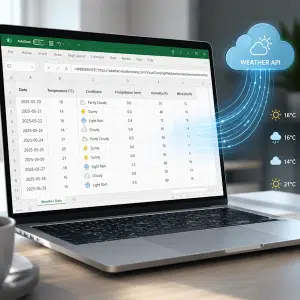
If you need a more technical, spreadsheet-native way to retrieve weather data than the Add-In or download, you can leverage Excel’s WEBSERVICE function through Visual Crossing Weather. This tool uses an API key to dynamically update your spreadsheets with the latest temperature, precipitation, wind conditions, or severe weather alerts.
This direct integration empowers you to build sophisticated weather-driven models, automate reports, and gain valuable insights into how weather impacts your business, research, or personal interests.
Visual Crossing’s easy WEBSERVICE integration requires no manual data imports or complex coding, saving you time and effort. You can precisely target specific geography data types or measurements, depending on your needs. This is an excellent way to track historical trends, forecast future conditions, or analyze real-time impacts without having to learn JSON. To get started, see our guide to using the WEBSERVICE function.
CSV & XLSX Download
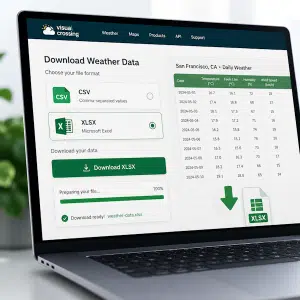
For those who need a large, static dataset, such as for historical analysis or global weather data visualization, direct downloads are a simple, streamlined option. A download provides weather data in Excel-ready formats, such as universal CSV or Excel’s own XLSX format, without requiring APIs, formulas, or other integrations.
Whether you’re a business analyst, researcher, or weather enthusiast, our platform allows you to select the specific weather elements that you need – from temperature and precipitation to wind speed and humidity – for any location worldwide.
With just a few clicks in our web-based Query Builder, you can generate a ready-to-use CSV or XLSX file that can be opened directly into Microsoft Excel or another spreadsheet software. You can then quickly visualize trends, perform calculations, and integrate weather data seamlessly into your existing spreadsheets and workflows.
When using our XLS/XLXS files, you can customize your data selection, ensuring you get only the information you need in an analysis-ready format.
Power Query
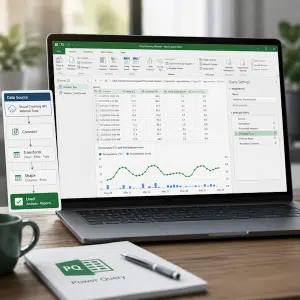
Some users require more control over importing, transforming, and automating weather data workflows inside Excel, which is why we’ve developed Visual Crossing Weather with Excel’s Power Query functionality.
The Power Query function lets you effortlessly import precise data from our comprehensive weather API. You can select specific weather metrics, filter by location, and transform data into your preferred format.
This powerful combination empowers you to build dynamic dashboards, create insightful reports, and gain a deeper understanding of how weather influences your business, research, or any area of interest.
As with our other tools, you can use this to track historical trends, forecast future conditions, or analyze real-time impacts depending on your specific needs. You can also automate weather insights with continuous queries, eliminating manual data loading. Gain a competitive edge with timely weather insights, all within your existing Excel infrastructure.
Weather Workbook
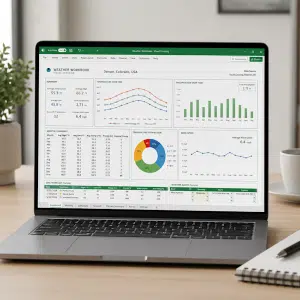
Visual Crossing’s exclusive Weather Workbook is a guided, ready-to-use option for Excel users of all levels. Rather than needing to import, code, or manually format data, you can rely on our purpose-built, intuitive interface. The Weather Workbook guides you through selecting locations, choosing weather metrics, and analyzing the output.
Our Weather Workbook is invaluable for those who need actionable weather insights but don’t have the time or resources to code their own weather integration. As soon as you download the Weather Workbook, you can get to work selecting your data points and incorporating them into any existing workflow.
Ready to work faster with weather data in Excel?
Sign up for a free account now and immediately begin using our weather API to query accurate forecast & historical data for any global location.
Weather data for Microsoft Excel can help you speed up and simplify essential activities like weather analysis, forecasting, operational planning, and status reporting. We offer a range of tools tailored to different use cases, from robust Power Query to straightforward direct download, depending on your specific needs. Sign up today to see how Visual Crossing Weather helps individuals and organizations do more with their weather data.
FAQs about Weather Data for Microsoft Excel
You can add weather data to Microsoft Excel in a range of ways, including a Weather Add-In, WEBSERVICE function, Power Query, or CSV/XLS download, depending on your specific use case.
The Weather Add-In allows you to use function calls to query data directly from a spreadsheet. Power Query uses Excel’s Power Query function and can help you create dynamic tables or visualizations. WEBSERVICE is a more technical, API-based tool than the Weather Add-In and is good for those who need highly precise queries or continuous data ingestion.
Yes, you can use Excel to analyze a range of data types depending on your needs. Each of these formats supports historical analysis, current weather conditions, and forecast data. You can formulate a query for specific dates, including those in the future, and specify a city, ZIP code, or region.
Direct download is the preferred way to download weather data, as it provides you with a large dataset for analysis. Our web-based Query Builder enables you to download your preferred data points and review them through Excel. You can download CSV, XLS, or XLSX.
These tools can help you identify weather-related trends in business reporting, such as changes in sales during certain weather events. You can also use historical reports to forecast seasonal trends or identify business activities that are most vulnerable to weather-related disruptions.