

You may cancel your subscription to Visual Crossing Weather Data at any time through your Visual Crossing Account page.
On your Account page you can take many different common actions that are helpful for you:
- Check your account status
- Change your password
- Update your Account information including payment methods
- View, Modify or Cancel Subscriptions
- Copy or Modify your API Key
- Check your usage and usage limits
- Adding Users to your Corporate or Enterprise Subscription
- Permanently delete your account
How to Login and Check your Account Status
Log in to your Visual Crossing account to view and manage your account, subscription, API access, and usage. Go to the Visual Crossing Account page and sign in using the email address and password associated with your account.
Once logged in, the Account page provides an overview of your current account status, including your active subscription, account details, API key, and available usage information. You can use this page as the starting point for managing most aspects of your Visual Crossing account.
Change your Password
You can change your Visual Crossing account password at any time from the Account page.
After logging in, open the account management options and select Change Password. Enter your new password and confirm the change.
If you have forgotten your password, use the password recovery option on the login page. For security, never share your password with anyone, including Visual Crossing support staff
Accessing your Account
Before you can do any action you need to first 1) have an account in our system and login to that account. From our home page you will see the following:
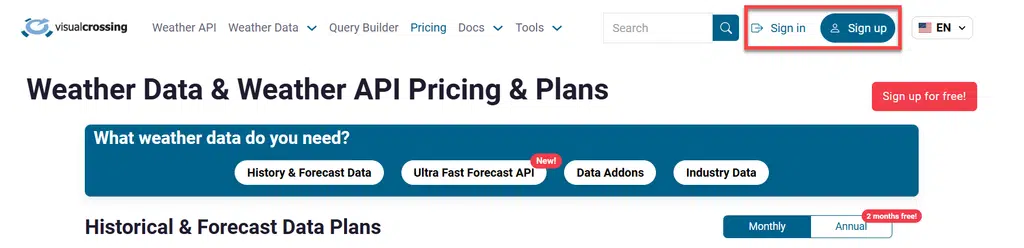
Once you are logged in, you will see the “Account” button at the top of the home page.
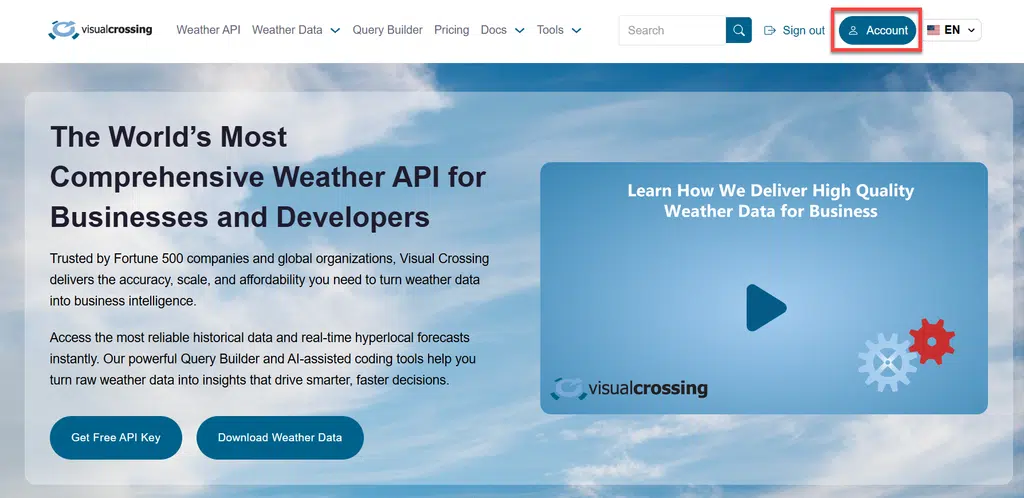
To access your account simply click on the “Account” button and it will give you direct access to the account management page:
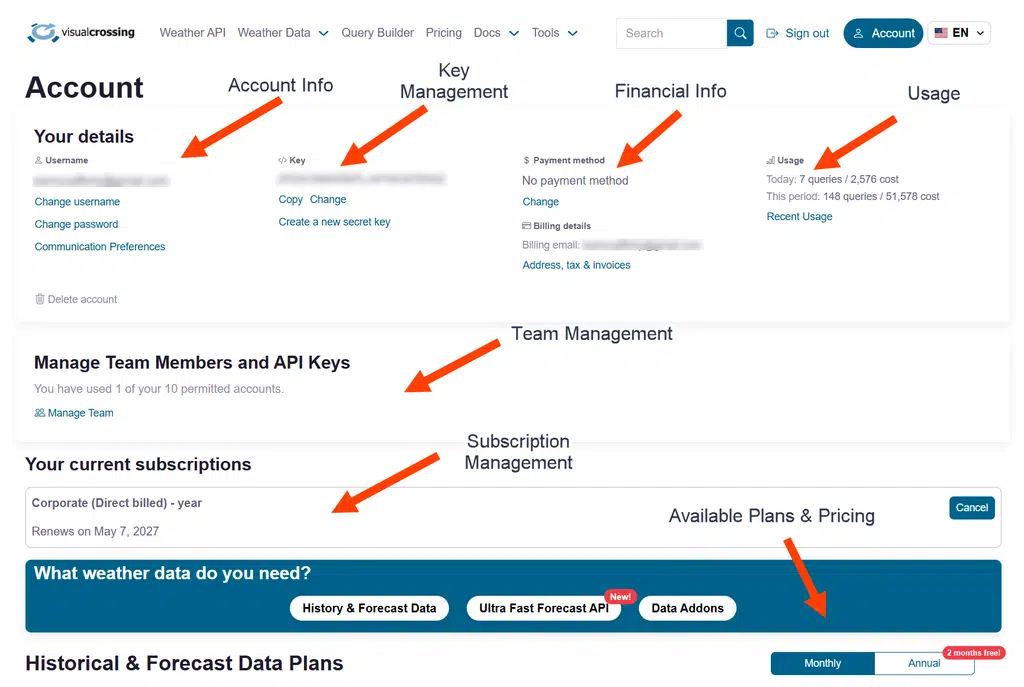
Now we can complete all of the actions mentioned above will full access.
Update your Account Information and Payment Methods
Your account information and billing details can be managed from the Account page. Under “Your Details”, select the option for username, password or communication preferences.
Under the Payment method section you can update information such as your payment method, billing information, and tax ID. For all standard accounts you will likely enter in a credit card. For Corporate Annual and Enterprise accounts they can opt for being billed by invoice. Any changes to your billing information will be reflected on future invoices and receipts. It is important to have all of the billing information correct prior to an invoice being due as changes cannot be made once an invoice is cut. It is always best to reach out to your Accounting Department and ask them what they require on invoices. Clicking on the “Address, Tax & Invoices” section:
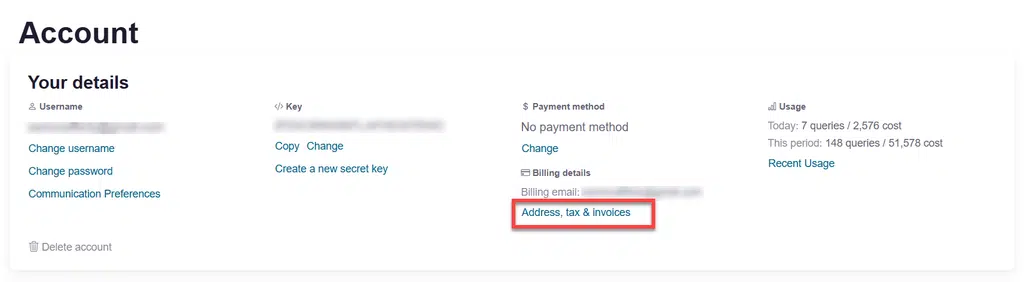
This will open the billing details editor where we can see our billing account and invoices:
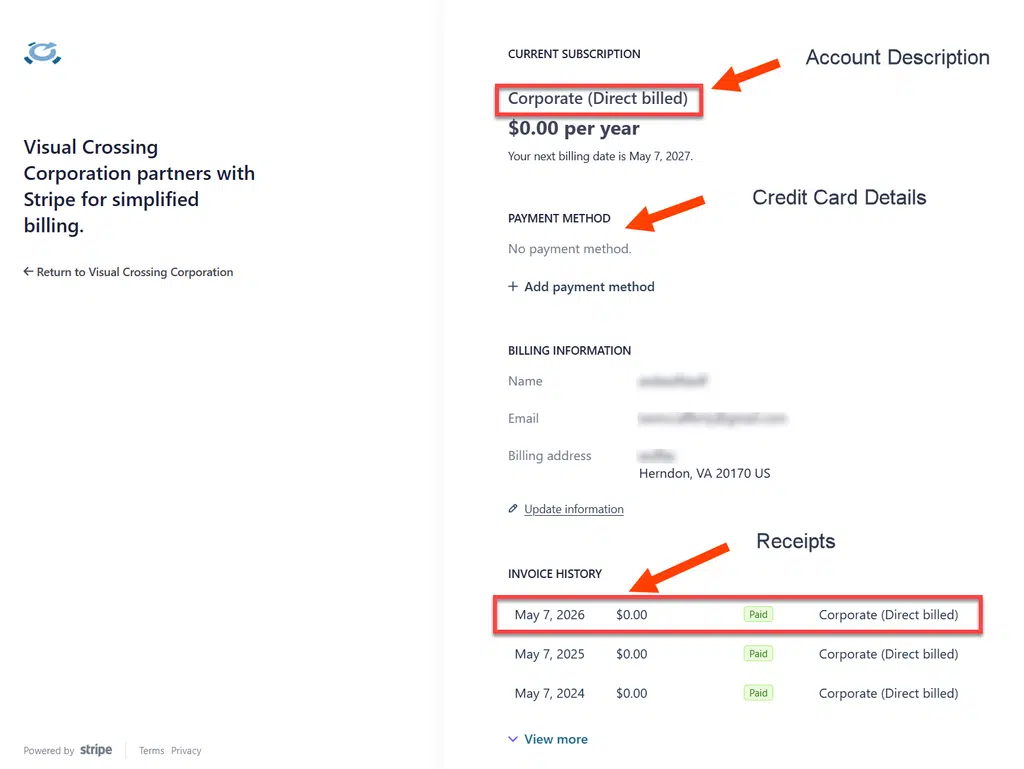
As you can see on our page “Corporate (Direct billed)” means that your account is set up to be billed through an invoice. Other subscriptions will likely see a credit card in the “PAYMENT METHOD” section. At the bottom of the page are all of the paid invoices/receipts. At any time, the user can select any invoice and download the information for proof of payment.
NOTE: Payment information for standard accounts is securely managed through Stripe, Visual Crossing’s payment processing partner.
Important: If you change the email address associated with your account, that address will also become the email address you use to log in, and it will be used for invoice delivery. If you need to confirm your changes you reach out to Support and confirm that your billing and account email address are correct.
Modify of Cancel your Current Subscriptions
Review the subscription information displayed for your account. Depending on your plan, you may be able to change your subscription or manage its billing through the available account controls. If you simply need to cancel you can find the “Cancel” operation in multiple places where the subscription is viewed:

When cancelling your subscription, your current plan will be available until the end of the current subscription period. There are no partial refunds for the term you purchased. If you are upgrading you can get a prorated value applied to your new subscription. You may restart your subscription or change plans at any time. See steps under How to cancel Visual Crossing Weather Data Subscriptions
If you need additional help to cancel a subscription or have questions about changing your plan, contact Visual Crossing Support.
Find or Modify your API Key
Your Visual Crossing API key is displayed in your account information and is used to authenticate requests to the Weather API.
To find your key, it is easily located in the API key section. If you need to replace your key, select Change and confirm the change. A new key will be issued immediately, and the previous key will stop working.
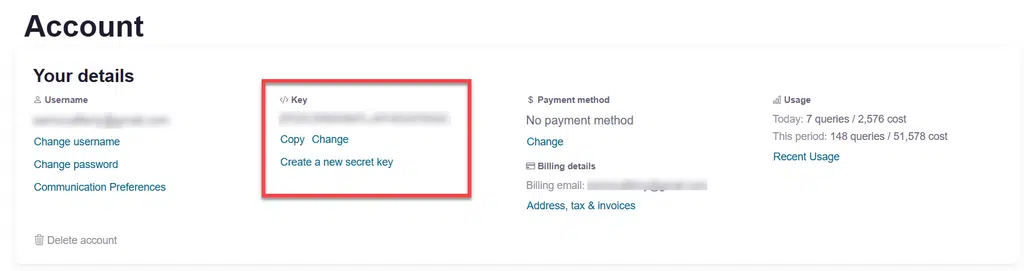
After changing your API key, remember to replace the old key everywhere it is used in your applications, scripts, or integrations.
Keep your API key private. Anyone with access to your key can make API requests using the privileges associated with your account. If you believe your key has been compromised, change it immediately.
Check your Usage Limits
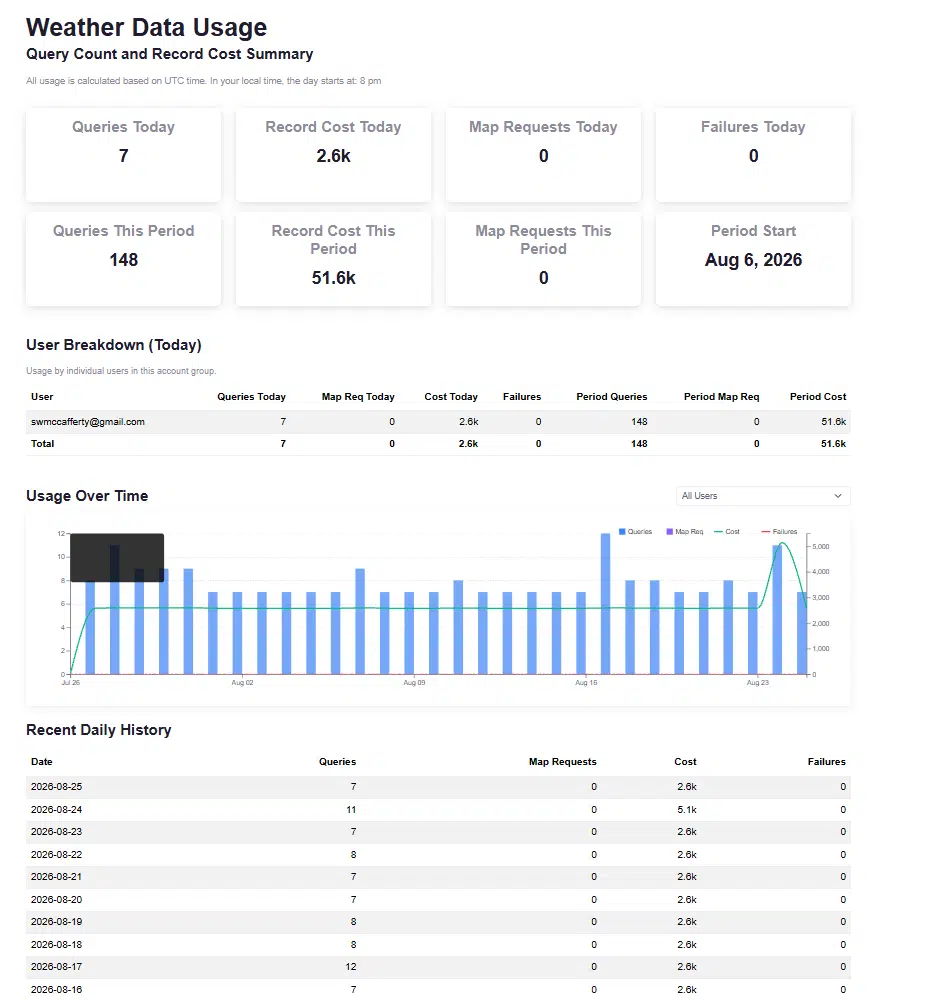
The “Usage” section of your account shows how much of your available Visual Crossing data allowance you have used. It will first offer a summary. To view your detailed usage open “Recent Usage” in the Usage section. The usage details include your query activity, associated costs, available free credits where applicable, and usage for the current billing period.
Add Users
Corporate and Enterprise subscriptions allow you to give multiple users access to your Visual Crossing account. The account administrator can add users and manage their access from the Account page.

To add a user, log in to your Visual Crossing account and open the “Manage Team” section. Select “AddUser” and enter the user’s email address and other requested information. The new user will receive instructions for accessing the account.
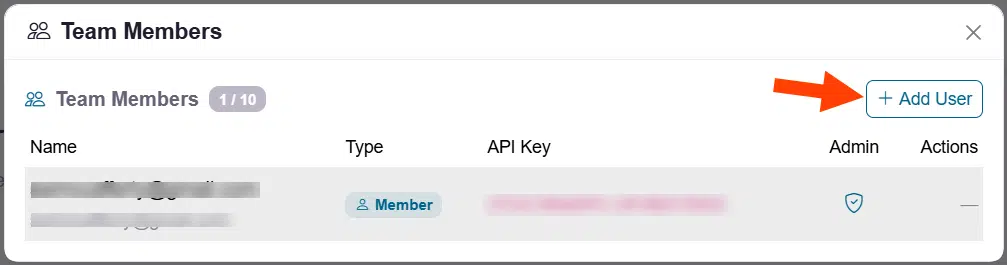
Once users have been added, administrators can manage their access and, where applicable, assign API keys for use with applications and integrations.
Adding users to your subscription allows your organization to share its Visual Crossing subscription without requiring each user to maintain a separate subscription. Users can work with the organization’s API access and subscription resources according to the permissions assigned to them.
For more information about managing team users and API keys, see the Visual Crossing documentation on team-user management.
Deleting your account
If you would like permanently delete your account, you may do this by selecting ‘Delete Account’ on the account page. Please note that this is permanent and your API key and account will be disabled immediately.
If you have any questions or problems
If you have any questions or problems cancelling your subscription as described above, please reach out to our Support Team. Make sure to include the email address associated with the account, and we’ll be glad to help you resolve the issue.
When contacting us for cancellation-related issues, please allow three business days before the end of your current subscription period to avoid undesired charges.