

Overview
Child user management allows account administrators to create and manage additional users and API keys under their account. This is useful for organizations that need to distribute API access across team members or applications while maintaining centralized billing and control.
The feature is available to client administrators whose plan permits more than one user account (controlled by the maximum number of children setting on the plan). For more information on number of children for a given plan, please see the pricing page.
Accessing Child User Management
From the Account Page
- Navigate to your Account page
- Scroll to the Manage Team Members and API Keys section
- Click Manage Team to open the management panel
- The panel shows how many of your permitted accounts are in use (e.g. “3 of 10”)
The management panel opens in a modal dialog and provides full control over your team members and API keys.

User Types
There are two types of child users:
Team Members
Team members are full user accounts with their own login credentials and API key.
- Have a unique email address used for login
- Have a password (auto-generated if not specified)
- Can sign in to the website and access their own dashboard
- Have their own API key for making weather data requests
- All usage counts against the parent account’s quota
API Keys
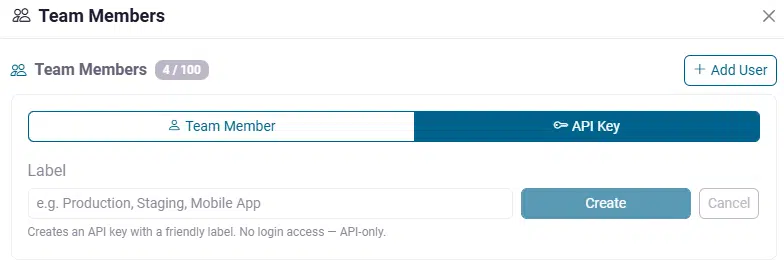
API keys are lightweight, API-only credentials ideal for separating access across applications or environments.
- No login access — API-only
- Identified by a friendly label (e.g. “Production”, “Staging”, “Mobile App”)
- Auto-generated username (not visible to users)
- Have their own API key for making weather data requests
- All usage counts against the parent account’s quota
Operations
Adding a User
- Click the Add User button (visible when the account has not reached its user limit)
- Select the user type using the toggle:
- Team Member — enter an email address and optionally a password
- API Key — enter a descriptive label
- Click Create
The new user appears immediately in the list with their API key visible. For team members, if no password is provided one is generated automatically.
Copying an API Key
Click on any API key value in the table to copy it to your clipboard. A brief “Copied!” confirmation will appear.
The same copy-to-clipboard functionality is available on the result shown after resetting an API key.
Resetting an API Key
- Click the reset icon (↻) next to the user
- Confirm the action in the dialog — the current key will stop working immediately
- The new API key is displayed in the confirmation dialog — click it to copy
- Close the dialog
Warning: Resetting an API key is immediate and irreversible. Any application using the old key will lose access.
Changing a Password (Team Members Only)
- Click the key icon next to a team member
- Enter the new password in the dialog
- Click Change Password
This option is only available for team member accounts (not API keys) and cannot be performed from the admin page.
Removing a User
- Click the delete icon (🗑) next to the user
- Confirm the removal in the dialog
Warning: Removing a user is permanent and cannot be undone. The user will immediately lose all access.
Restrictions
- Client administrators cannot be removed or modified — the admin badge (shield icon) indicates the account owner
- The Add User button is hidden when the account has reached its maximum permitted users
- Only client administrators can manage child users — non-admin child users cannot access this feature
- The feature section is disabled entirely for accounts with a single-user plan
More information and support
For more information or if you have questions, please contact support.